
Your best friend for file transfer.
 Fetch
Fetch
 Fetch Help > Windows > Transfer Window
The transfer window lets you copy files between your Macintosh and a server, as well as display or modify files on a server. The Fetch transfer window appears once you have successfully opened a connection to a server.
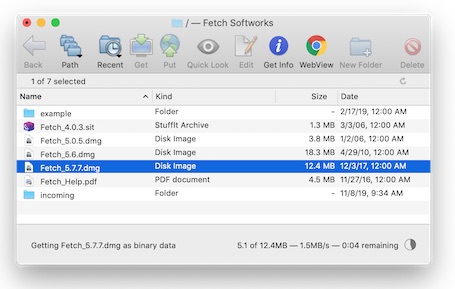
Fetch creates a new transfer window for each connection you open from the New Connection dialog or with a shortcut.
The window title bar shows the name of the current folder, and then either the name of the shortcut matching this server or the server's hostname.
At the top of the transfer window is the transfer window toolbar, which contains buttons for common commands. You can modify the buttons shown in the toolbar, or hide it altogether.
Click the Path button in the toolbar, or Command-click the title, to change to any folder that contains the current folder. Use the Back button in the toolbar to return to the folder you were previously viewing.
Just below the toolbar is the info bar, which shows the number of items in the current folder, information about whether the list is cached, the Refresh  button, and a padlock icon indicating the security of your connection.
In the middle of the window is the file list, which shows the remote files and folders on the server. Click a column heading to sort the file list by that column; click the column heading a second time to reverse the sort order.
Click items in the file list to select them. Then choose a command from the toolbar, or from the menus, to do something with those items.
Double-click files in the file list to get (download) the files, or double-click a folder to show the contents of that folder in the file list.
Drag files or folders from the Mac OS X Finder to the file list to upload those items to the server. You can also use the Put button in the toolbar to select items for upload if they are not easily accessible for dragging.
Rename files by clicking once to select an item, and then pressing the Return key to display the edit box. Type a new name or edit the existing name, and press Return again when you're done.
At the bottom of the window is the status pane, which displays information about the current transfer or action, such as which file you are downloading and how soon the transfer should be finished.
For more in-depth information about the transfer window, see the following topics: