
 Fetch
FetchWant to make a quick edit to that graphic on your webpage in Photoshop or Acorn with just one click? With Fetch 5.5, now you can.
That was Then…
Since Fetch 4, Fetch's Edit feature has let you open a file in an external editor, and have your changes be automatically uploaded back to the server. But it only worked with a select set of text editors that support the external editor protocol and GraphicConverter for image files. If all you wanted to do was edit your text files in one of the supported text editors, this worked well. But from the feedback we received, we knew that users wanted to edit with a wider range of applications, such as Dreamweaver for HTML files, and to edit other kinds of files, such as Microsoft Word documents.
…This is Now
Fetch 5.5's improved Edit command can do just that — now you can edit any kind of file on a server, using any application that supports opening and saving that file type. Just select a file in the Fetch file list, click the button in the toolbar, and Fetch will download the file and open it in the appropriate application for that kind of file. Whenever you save, Fetch will notice and upload the revised file back to the server.
Choosing the Right Application
How does Fetch decide which application to use? It normally picks the default application for that kind of file, as specified by the Mac OS X Finder. But if you'd rather edit with another application, that's not a problem. Select a file, hold down the Option key, and click the button. Fetch will ask you to choose another editor from a list of applications on your Mac that claim to support editing that kind of file. If you the application you want isn't in the list, you can choose it using the Other menu item. If you want to change the editor permanently, click the checkbox.
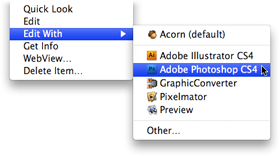
Or, if you prefer, you can also Control-click on a file and use the Edit With menu in the contextual menu to choose a different editor for this time only.
Want to edit images with Photoshop? HTML files with Dreamweaver? Spreadsheets with Excel? Fetch 5.5 will let you do that.
But What About TextEdit?
We're sorry to say there is one situation where a common Mac application isn't invited to the editor party… but it's for a good reason. We're often asked, “How can I make Fetch edit my webpage (HTML) files with TextEdit?” Our answer is, “You really don't want to do that.” Why would we say that? HTML file are text files… TextEdit is a free text editor that comes with Mac OS X… what's the problem?
TextEdit understands basic HTML, and when you open an HTML file in TextEdit, instead of showing you HTML code, it shows you formatted text. It's trying to offer you What You See Is What You Get (WYSIWYG) HTML editing. But unfortunately, there's a lot of HTML that TextEdit doesn't understand. And when you save your HTML file after editing it, TextEdit just throws away all the parts it didn't understand, usually resulting in data loss and a webpage that doesn't look or work the way you expect it to.
And that's why Fetch doesn't offer TextEdit as a choice for editing HTML files. (It's fine for files that really are just plain text, and Fetch offers TextEdit as an editor for them.) Instead, if you're looking for a good, free text editor, we recommend TextWrangler from our friends at Bare Bones Software.
Every Editor is a Winner
But otherwise, if an application supports editing a file, it will work with the Fetch Edit command. Regardless of which application you use — happy editing!
Is there a way to have Fetch automatically change the file names to lowercase and the spaces to underscore during an upload.
Hi Arthur,
There isn’t such a feature built into Fetch, but you could create an Automator droplet that renames files before uploading them. You would use the following actions:
Copy Files (to make a copy of the files)
Rename Finder Items, set to Change Case to lowercase
Rename Finder Items, set to Replace Text (replacing each space with an underscore)
Upload Files (to actually upload the files)
Please contact support if you have any questions.
I know this is rather late for this post – however – in TextEdit you can in fact disable the HTML WYSIWYG “display” option you mention.
There is a checkbox in the Preferences under the Open and Save Tab. I do quick edits all the time with TextEdit on XHTML – CSS and JS files when Im too lazy to open DW for a single tweak.
So forcing TextEdit to NOT be an option and download TextWangler – because someone can’t go into the Prefs and check a box seems kind of lazy to me.
Just saying.
Thanks for pointing out that TextEdit option. Unfortunately, it is very easy to corrupt an HTML file before learning about the importance of changing that setting. After helping a number of users who had run into this problem we concluded it was better to be safe than sorry.